Open a file. Find your next step.
Drop an image, PDF or document into the workspace and choose a compatible tool.
 TypeShift.Support this project ↗
A WORKSPACE OF ITS OWN
Convert, edit and create in a desktop workspace designed around your next task.
Download for WindowsVersion 0.1.6 · 264 MB · Windows x64
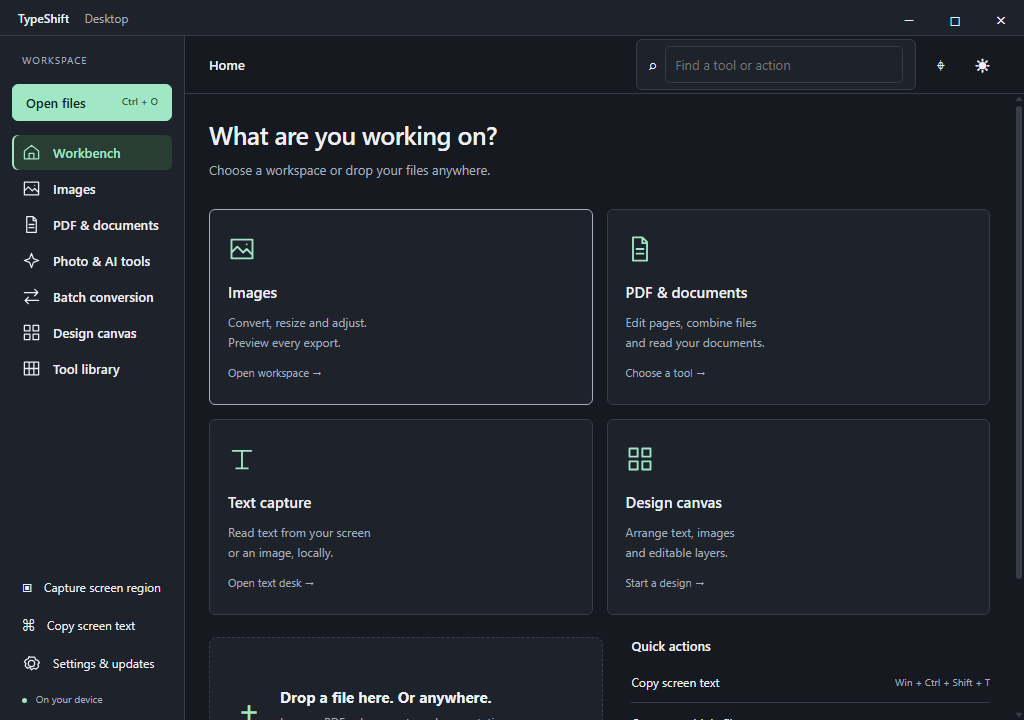
A focused workspace. Built for your desktop.
Drop an image, PDF or document into the workspace and choose a compatible tool.
Press Win + Ctrl + Shift + T and select a region. Read English, Arabic and codes locally, then review uncertain readings before copying.
Restore photos and illustrations locally at 2× or 4×. Apply optional Photo Sharpener to the result, adjust its strength and compare before saving.
Convert up to 20 files in a batch, choose an export folder and keep your originals unchanged.
Resize, rotate and adjust your image in a dedicated workspace. Expand the preview and save PNG, JPG or WebP copies.
Create editable designs with text, images and layers. Save your project or export a PNG.
GETTING STARTED
Your original files stay unchanged. Save edited results as a new copy.
Use the Windows download button on this page.
Choose a location. Setup adds desktop and Start Menu shortcuts.
Browse or drop a file, then choose what you want to do.
A FEW THINGS TO KNOW
Image conversion, design editing, screen text recognition and full photo restoration run on your device. Photo restoration models are included in Setup. Background removal may download its model on first use; updates also require a connection.
TypeShift stays available in the system tray. Choose Quit TypeShift from its tray menu to fully exit.
Published updates are checked against the owner’s digital signature and file checksum. Save your work before choosing to restart and install an available update.
Press Win + Ctrl + Shift + T and select a screen region. Text recognition supports English and Arabic. Another app using the shortcut can prevent it from registering; the sidebar offers the same capture action.
Look for TypeShift in the image’s context menu. On Windows 11, classic context menu commands may be under Show more options.
Results depend on the tool and input file. PowerPoint content previews and document conversions may differ from the original fonts, themes, animations or complex layouts. Review exported results.
SHA-512
82915ac65cb3a4db3f8af28ffb7431a952cca6c319e54d24bdb87b6f5b80e5dbbfb4243955892c6e9747797477332b479f86c1a7b5431c4a16271286df90541d